Mastering Digital Watercolor: A Practical Guide to Watercolor Ink Brushes and File Formats
The transition from traditional media to digital art often hinges on one critical factor: the authenticity of the brush engine. For artists, designers, and illustrators, Watercolor Ink Brushes represent a bridge between the unpredictable beauty of physical paint and the precision of vector and raster software. Unlike standard digital brushes that apply uniform opacity, these specialized tools simulate the fluid dynamics of water, pigment dispersion, and paper texture. However, selecting the right resource involves more than just aesthetic preference; it requires an understanding of file compatibility, editing capabilities, and workflow integration.
This guide explores the distinct characteristics of watercolor ink assets, compares various file formats such as AI, SVG, EPS, JPG, PNG, and ABR, and helps you determine which combination best suits your creative needs in Adobe Illustrator, Photoshop, and other design platforms.
Understanding the Distinct Nature of Watercolor Ink Brushes
Watercolor ink is characterized by its transparency, granulation, and the way it pools at the edges of a stroke—a phenomenon known as "blooming." In a digital context, Watercolor Ink Brushes aim to replicate these organic imperfections. What makes them distinct from standard round or square brushes is their reliance on complex texture maps and pressure sensitivity settings. A high-quality watercolor brush does not merely change size with pressure; it alters opacity, flow, and sometimes even color saturation to mimic how real pigment interacts with water.
When evaluating these resources, it is essential to distinguish between two primary categories: raster-based brushes and vector-based shapes. Raster brushes, typically found in .ABR (Adobe Brush) format, are pixel-based and excel in programs like Adobe Photoshop. They offer realistic blending and texture but are resolution-dependent. Conversely, vector-based watercolor elements, available in .AI, .SVG, and .EPS formats, are mathematical paths. These do not "paint" in real-time but provide pre-rendered watercolor splashes, strokes, or textures that can be scaled infinitely without quality loss. Understanding this distinction is the first step in choosing the right tool for your project.
Comparing File Formats: Flexibility vs. Realism
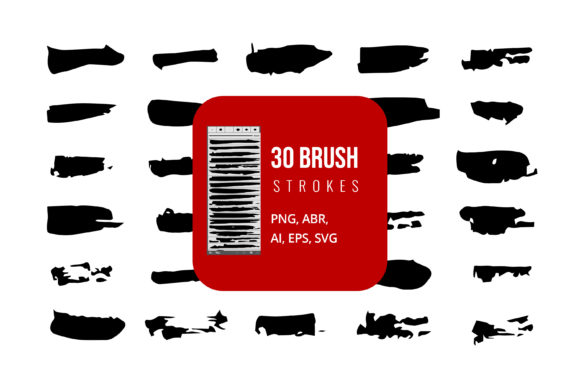
The versatility of modern digital art resources lies in their multi-format availability. A comprehensive pack of Watercolor Ink Brushes often includes a variety of file types, each serving a specific purpose in the design workflow. Here is how they compare:
Raster Formats: JPG and PNG
JPG and PNG files are static images. In the context of watercolor assets, these are typically pre-made splashes, stains, or textured backgrounds.
- JPG: Best for opaque backgrounds or when file size is a concern. However, JPGs do not support transparency, making them less ideal for layering watercolor effects over existing artwork.
- PNG: The preferred choice for static watercolor elements due to its support for alpha channels (transparency). You can drag and drop a PNG watercolor splash directly into Adobe Photoshop, Microsoft Word, or PowerPoint to instantly add an artistic touch. The limitation here is scalability; enlarging a PNG beyond its original resolution results in pixelation.
Vector Formats: AI, SVG, and EPS
For graphic designers working in Adobe Illustrator or similar vector software, AI, SVG, and .EPS files offer superior flexibility. These formats allow you to edit the shape, color, and size of watercolor elements without any degradation in quality.
- AI (Adobe Illustrator): The native format for Illustrator. It retains all editable layers and properties, making it the best choice if you plan to heavily customize the watercolor shapes.
- SVG (Scalable Vector Graphics): Ideal for web design and cross-platform compatibility. SVGs are lightweight and can be edited in code or various design tools, ensuring your watercolor graphics look crisp on any screen size.
- EPS (Encapsulated PostScript): A universal vector format compatible with a wide range of applications, including older versions of design software and even Microsoft Office products like Word and PowerPoint. While less editable than AI files, EPS provides a reliable way to import scalable watercolor vectors into non-Adobe environments.
Native Brush Formats: ABR
The .ABR format is specific to Adobe Photoshop. These are dynamic brushes that allow you to "paint" with watercolor effects in real-time. Unlike static PNGs or vectors, ABR brushes respond to your stylus pressure, tilt, and speed. This format is indispensable for digital painters who want to create original artwork rather than assembling pre-made elements. However, ABR files are generally not compatible with vector software like Illustrator or office suites like Word.
Software Compatibility and Workflow Integration
Choosing the right file format depends largely on the software you intend to use. A balanced approach often involves leveraging multiple formats within a single project.
Adobe Photoshop is the primary environment for .ABR brushes. Here, you can utilize the full potential of watercolor simulation, blending colors naturally on a digital canvas. For quick compositing, PNG files are equally valuable in Photoshop, allowing you to overlay realistic textures without the computational load of a live brush engine.
In Adobe Illustrator, the focus shifts to AI, SVG, and EPS files. While Illustrator does have brush tools, they function differently than Photoshop’s. Vector watercolor assets are typically used for logo design, packaging, or print media where sharp edges and scalability are paramount. You can edit the colors of an EPS or AI watercolor splash to match your brand palette precisely, a task that is far more difficult with raster-based PNGs or JPGs.
For users of Microsoft Word and PowerPoint, the options are more limited but still effective. JPG and PNG files are the most straightforward to insert and manipulate in these programs. EPS files can also be imported into newer versions of Office applications, providing better quality for printed documents. However, dynamic brushing is not possible in these environments; you are limited to placing and resizing static images.
Decision Factors: When to Choose Which Option
To make an informed decision, consider the end goal of your project. Are you creating a unique piece of digital art, designing a scalable logo, or preparing a business presentation?
- Choose ABR Brushes if: You are a digital painter or illustrator using Photoshop. You need organic, hand-painted results and want control over every stroke. This is the best option for creating original artwork, concept art, or detailed illustrations.
- Choose AI/SVG/EPS if: You are a graphic designer working in Illustrator or need scalable graphics for print and web. These formats are ideal for logos, icons, and marketing materials where the watercolor effect needs to be resized frequently or edited for color accuracy.
- Choose PNG/JPG if: You need quick, easy-to-use assets for presentations, social media posts, or composite designs. These are perfect for non-designers or professionals using Word, PowerPoint, or basic photo editors who want to add a artistic flair without learning complex software.
Tradeoffs and Limitations
While Watercolor Ink Brushes and associated assets offer significant creative advantages, they come with tradeoffs. Raster-based solutions (ABR, PNG, JPG) can result in large file sizes, especially at high resolutions, which may slow down your computer or complicate file sharing. Vector formats (AI, SVG, EPS), while scalable, can struggle to replicate the subtle, noisy textures of real watercolor paper unless complex mesh gradients or opacity masks are used, which can increase processing power requirements.
Furthermore, the learning curve varies. Mastering an ABR brush requires practice with pressure sensitivity and blend modes. Editing vector watercolor shapes in Illustrator demands a good understanding of path manipulation and layer management. Static images are the easiest to use but offer the least creative control.
Conclusion
Integrating Watercolor Ink Brushes into your digital toolkit expands your creative possibilities, allowing you to blend the warmth of traditional media with the efficiency of modern technology. By understanding the strengths and limitations of each file format—AI, SVG, EPS, ABR, JPG, and PNG—you can select the right resources for your specific software and project requirements. Whether you are painting in Photoshop, designing in Illustrator, or presenting in PowerPoint, the right choice of format ensures that your watercolor effects remain vibrant, professional, and fit for purpose.