Mastering Digital Artistry: A Guide to Watercolor Brushes, Ink Brushes, and Vector Resources
The transition from traditional media to digital illustration offers unparalleled flexibility, yet it often presents a steep learning curve regarding tool selection. For artists seeking to replicate the organic feel of physical painting, Watercolor Brushes and Ink Brushes serve as foundational assets. These digital tools are not merely presets; they are complex algorithms designed to mimic the behavior of bristles, ink flow, and paper texture. However, the utility of these brushes extends far beyond simple painting applications. When paired with versatile file formats such as AI, EPS, SVG, JPG, PNG, and ABR, these resources become integral components of a modern designer’s workflow across Adobe Illustrator, Photoshop, and other creative software.
Understanding the Distinct Characteristics of Digital Media
To leverage these tools effectively, one must first understand what distinguishes Watercolor Brushes from their Ink Brushes counterparts. Watercolor simulation relies heavily on transparency, layering, and edge diffusion. A high-quality digital watercolor brush replicates the way pigment pools at the edges of a stroke and how colors blend wet-on-wet. This requires sophisticated opacity controls and texture overlays that react to pressure sensitivity. In contrast, Ink Brushes prioritize precision, line weight variation, and sharpness. They are designed to emulate the crisp snap of a nib or the fluid consistency of India ink, making them ideal for linework, calligraphy, and detailed illustrations where clarity is paramount.
The distinction is not just aesthetic but functional. While watercolor tools are often used for background washes, atmospheric effects, and soft shading, ink tools are typically employed for defining structures, creating contours, and adding high-contrast details. Understanding this dichotomy allows artists to layer these mediums effectively, using ink for structure and watercolor for mood, much like traditional mixed-media techniques.
The Importance of File Format Versatility
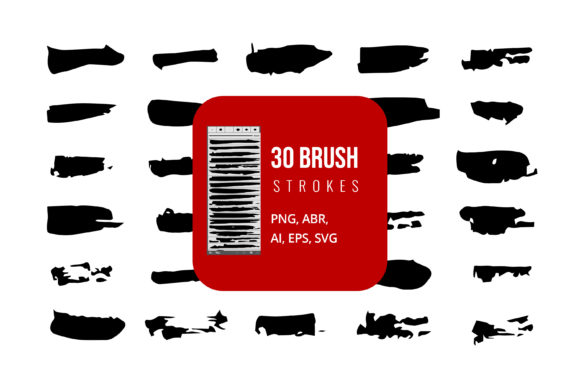
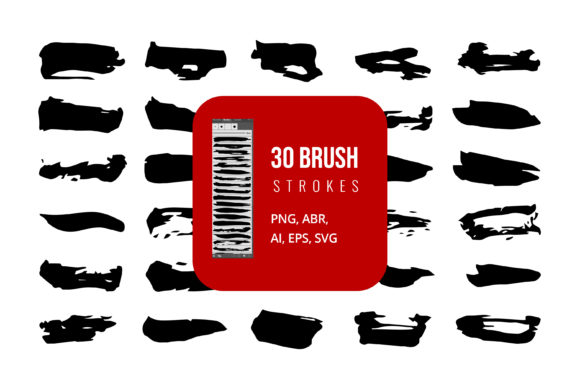
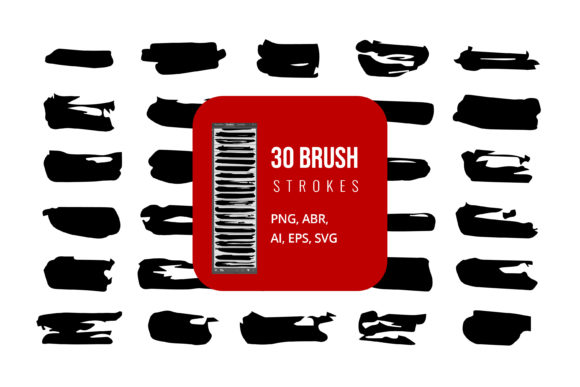
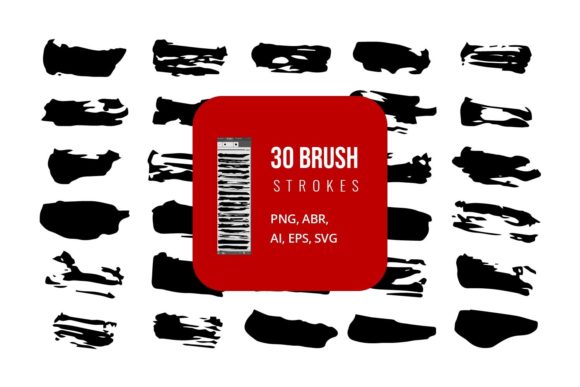
A common misconception among emerging digital artists is that brush files are limited to a single application. In reality, the value of a comprehensive brush pack lies in its format diversity. A robust resource package will include AI (Adobe Illustrator), EPS, SVG, JPG, PNG, and ABR (Adobe Brush) files. Each format serves a specific purpose in the design ecosystem.
- ABR Files: These are native to Adobe Photoshop and are essential for raster-based painting. They allow for dynamic pressure sensitivity and texture mapping, making them the go-to choice for digital painters using Watercolor Brushes and Ink Brushes directly on a canvas.
- AI and EPS Files: These vector formats are crucial for scalability. Unlike raster images, vectors do not lose quality when resized. This makes them indispensable for logo design, large-format printing, and precise graphic elements. You can edit these files in Adobe Illustrator to modify anchor points, ensuring that your ink lines remain crisp at any size.
- SVG Files: As web standards evolve, SVG has become vital for responsive design. These files are lightweight and code-based, allowing developers and designers to integrate artistic elements into websites without sacrificing load times or visual fidelity.
- JPG and PNG Files: These raster image formats are universal. PNGs, with their support for transparency, are particularly useful for overlaying textured brush strokes onto existing designs in software like Microsoft Word, PowerPoint, or non-Adobe editing tools. JPGs provide a compressed option for quick previews or web uploads where transparency is not required.
This multi-format approach ensures that whether you are working in Adobe Photoshop, Adobe Illustrator, or even office productivity software like Microsoft Word and PowerPoint, you have the appropriate asset ready for use. It eliminates the need for cumbersome conversion processes and preserves the integrity of the original artwork.
Comparing Workflow Approaches: Raster vs. Vector
When deciding how to utilize Watercolor Brushes and Ink Brushes, artists must choose between raster and vector workflows, or often, a hybrid of both. Raster-based tools, primarily accessed via ABR files in Photoshop, offer a more natural, painterly experience. The pixels blend seamlessly, allowing for realistic gradients and textures. This approach is best suited for concept art, illustrations, and any project where organic imperfection is desired. However, raster images are resolution-dependent. Enlarging a watercolor wash created in Photoshop may result in pixelation if the initial canvas size was insufficient.
Conversely, vector-based tools, accessed via AI, EPS, and SVG files, offer infinite scalability. Using Ink Brushes in a vector environment allows for clean, mathematical curves that can be adjusted endlessly. This is ideal for technical illustrations, typography, and branding materials. The tradeoff is that vectors can sometimes appear too "perfect" or sterile, lacking the subtle textural nuances of real watercolor. To mitigate this, many designers apply raster textures over vector shapes or use specialized vector brushes that simulate grain and opacity variations.
For many professionals, the optimal strategy involves leveraging both. An artist might sketch and lay down base colors using Watercolor Brushes in Photoshop to capture the right mood, then trace or refine key elements using Ink Brushes in Illustrator to ensure sharpness and scalability. The availability of both ABR and AI/EPS files in a single package facilitates this hybrid workflow seamlessly.
Evaluating Use Cases and Decision Factors
Choosing the right tool depends largely on the end goal of the project. For editorial illustrations, book covers, or personal art projects, the expressive capabilities of Watercolor Brushes are often the primary draw. The ability to layer translucent washes creates depth and emotion that rigid lines cannot achieve. In these scenarios, the ABR format is typically the most valuable, as it allows for real-time interaction with the digital canvas.
However, for commercial design tasks such as logo creation, packaging, or merchandise design, the precision of Ink Brushes in vector formats (AI, EPS, SVG) becomes critical. Clients often require files that can be scaled from a business card to a billboard without loss of quality. In these instances, relying solely on raster-based watercolor effects may limit the versatility of the final deliverable. Instead, designers might use vector ink brushes to create the core design and then incorporate PNG textures of watercolor splashes to add artistic flair without compromising scalability.
Another consideration is software compatibility. While Adobe Creative Cloud remains the industry standard, many creators use alternative software. The inclusion of JPG and PNG files ensures that users of Procreate, Clip Studio Paint, or even non-specialized software like Microsoft PowerPoint can still incorporate these artistic elements. For example, a presenter might use a PNG watercolor splash as a background element in a slide deck to add visual interest, or a marketer might use an SVG ink icon in a web banner. The versatility of the file types ensures that the artistic asset is not siloed within a single application.
Practical Tips for Integration and Editing
To get the most out of these resources, it is essential to understand how to edit and customize them. In Adobe Illustrator, AI and EPS files can be ungrouped and modified individually. You can change the stroke weight of an Ink Brush line, alter its color, or reshape its curves using the Pen Tool. This level of control is impossible with flattened raster images. Similarly, in Photoshop, ABR brushes can be adjusted in the Brush Settings panel. You can tweak spacing, jitter, and scattering to create unique variations of a standard Watercolor Brush, ensuring that your digital art does not look repetitive or manufactured.
When using these assets in office software like Microsoft Word or PowerPoint, PNG files are generally the best choice due to their transparency support. This allows you to place ink doodles or watercolor accents over text and images without unsightly white boxes surrounding them. For web development, SVG files are preferred for their small file size and crisp rendering on high-resolution screens.
Making an Informed Choice
Ultimately, the decision to invest in a comprehensive set of Watercolor Brushes and Ink Brushes with multi-format support comes down to workflow efficiency and creative flexibility. If your work is strictly digital painting, ABR files may suffice. However, if you operate in a multidisciplinary role—switching between illustration, graphic design, and presentation—you will find immense value in having access to AI, EPS, SVG, JPG, and PNG versions of the same assets. This approach future-proofs your library, allowing you to adapt your artistic elements to any medium or client requirement without the need for additional conversion tools or plugins.
By understanding the strengths of each format and the distinct characteristics of watercolor versus ink simulations, you can build a more robust, versatile, and professional digital toolkit. Whether you are refining a logo in Illustrator or adding texture to a photo in Photoshop, these resources provide the bridge between traditional artistic intuition and modern digital precision.